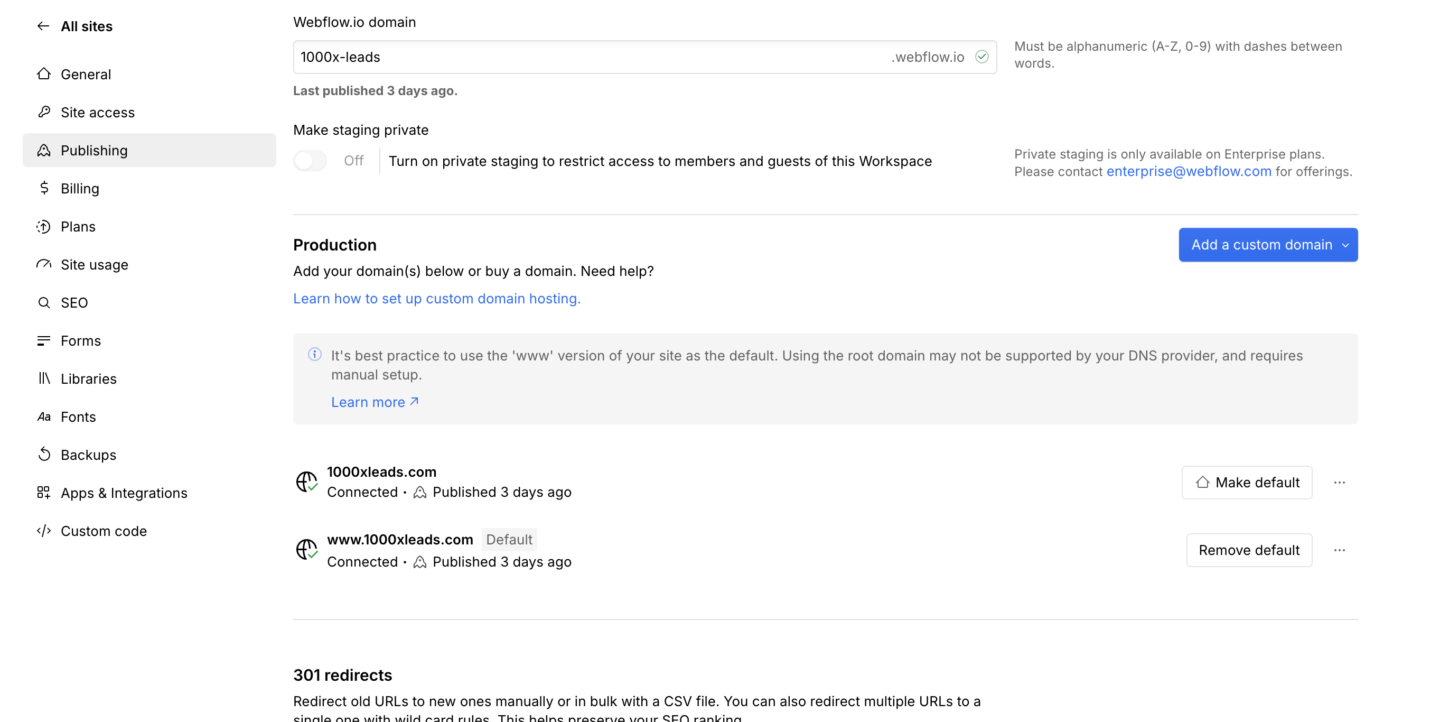
It's time to connect your domain to your Webflow site.
1. Purchase the Basic Plan
1. Log In: Access your Webflow account.
2. Select Project: Choose the site to upgrade.
3. Upgrade Plan:
• Navigate to Site Settings > Plans & Billing.
• Choose the Basic Site Plan.
• Enter payment details and confirm.
2. Connect Your Custom Domain
1. Access Site Settings: In your project, go to Site Settings > Publishing.
2. Add Custom Domain:
• Click Add a custom domain.
• Enter your domain (e.g., www.yourdomain.com).
• Click Add domain.
3. Update DNS Records:
• Log in to your domain registrar (e.g., GoDaddy, Namecheap).
• Navigate to DNS settings.
• Add two A Records:
• Host: @
• Points to: 75.2.70.75
• Host: @
• Points to: 99.83.190.102
• Add a CNAME Record:
• Host: www
• Points to: proxy-ssl.webflow.com
• Save changes.
4. Verify Domain in Webflow:
• Return to Webflow’s Publishing settings.
• Click Check status next to your domain.
• Once verified, set the default domain (preferably the www version).
5. Publish Site:
• Click Publish.
• Select your custom domain and confirm.